
Controller Tester: How to Test Your PS5, Xbox and PC Controller for Stick Drift, Dead Zones and Polling Rate
A controller tester shows stick drift, dead zones and polling rate in minutes. Test your PS5, Xbox or PC pad with free browser tools and read the results.

Your character walks when you are not touching the stick, or a trigger only fires when you squeeze it all the way down. A free controller tester shows exactly what your pad is sending, so you can tell a worn stick from a settings problem before you spend money on a replacement.
Short answer
A controller tester is a free browser tool that reads your pad through the Gamepad API and shows every button, stick, trigger and polling-rate reading live. Connect by USB and rest both sticks for 10 seconds: a healthy stick rests at 0.00, and a reading that stays above 0.15 at rest is a hardware fault.
Who this guide is for
This guide is for any player whose controller has started behaving strangely: drift, a character that walks on its own, or a trigger that feels dead.
This is for you if
- Your aim or character moves with thumbs off the sticks
- You want proof before replacing a controller or claiming a warranty
- You play on PS5, Xbox or PC
Look elsewhere if
- Your controller does not turn on or connect at all
- You want a buying guide for a new pad
Before you start: connect it the right way
Test over USB first, with a data cable, not a charge-only cable. Bluetooth adds jitter that can hide small drift.
Three things to check
- Use USB first A data-capable USB-C cable removes Bluetooth interference and adapter problems.
- Use Chrome or Edge The tester reads the HTML5 Gamepad API, which Chrome, Edge and Firefox support; Safari support is more limited.
- Test one controller at a time Close games and other controller apps first.
How this guide was researched
How we researched this
- The four tools below were opened and checked against what they show: sticks, buttons, triggers, vibration, circularity and polling rate.
- Platform steps come from the makers: PlayStation Support, Microsoft’s Xbox Accessories app, and Steam’s test screen.
- Polling-rate reference values are the tester’s own published values — Sony and Microsoft publish no polling-rate figure for these controllers.
- GameVexo does not physically test products — see how we research.
Controller tester: the 15-minute routine
A controller tester is a web page that reads your pad and draws what it is doing: buttons light up as you press them, sticks move as dots inside circles, and triggers rise as bars.
| Tool | What it checks | Best for |
|---|---|---|
| HardwareTester Gamepad Tester | Buttons, sticks, triggers, vibration, circularity | Main test |
| Steam test screen | Buttons, sticks, dead zones, calibration | PC players on Steam |
| GPTester polling-rate test | Polling rate in Hz, live and averaged | Wired vs wireless |
Open the Gamepad Tester at hardwaretester.com/gamepad in Chrome or Edge, connect by USB, and press any button. Run the checks below in order.
How to test for stick drift
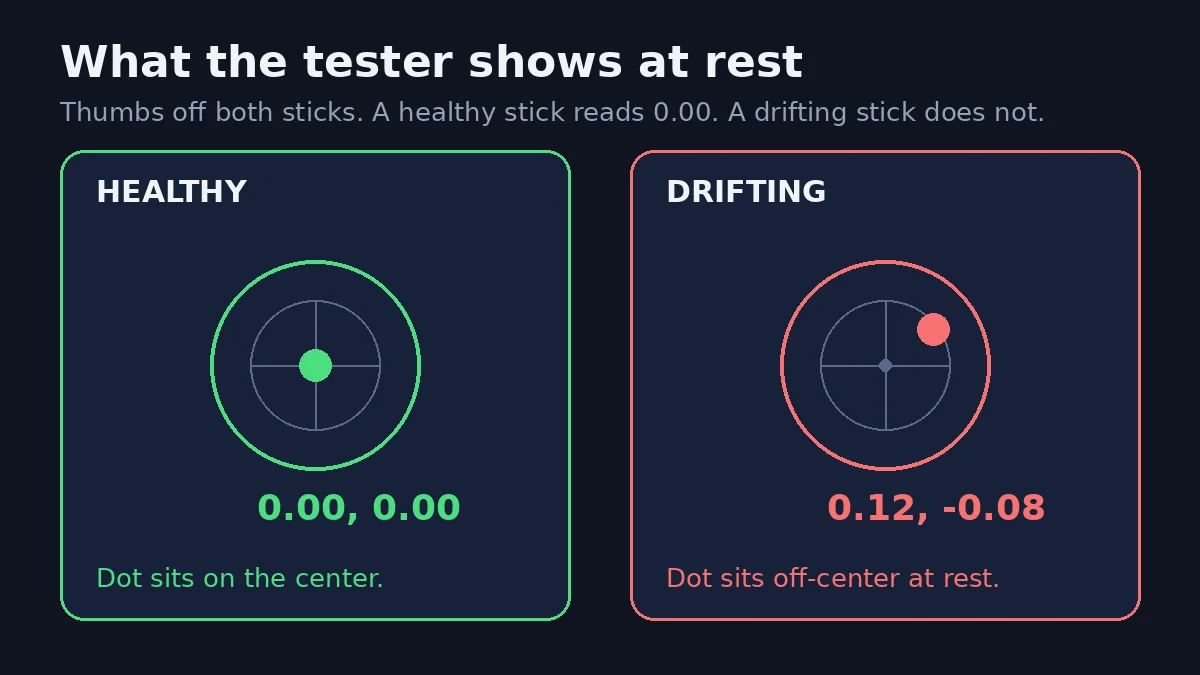
Stick drift means the stick reports movement when you are not touching it. Set the controller flat on a table, take both thumbs off, and watch the stick dots for about 10 seconds. A healthy stick reads 0.00 on both axes; a drifting stick sits off-center, or the dot wanders while the pad is untouched.
Do not judge it on one glance. Rotate each stick slowly through a full circle, release it, and watch the rest reading again. Repeat the rest check three times: a reading that keeps coming back off-center is drift. JoyCheck publishes the bands it uses: 0.00 to 0.03 at rest is healthy, 0.05 to 0.15 is drift you can usually mask with a dead zone or calibration, and above 0.15 the stick hardware is worn.
How to check the dead zone
The dead zone is the small area around a stick’s center where movement is ignored. Every stick needs one, because no analog stick returns to exactly 0.00 every time. The tester shows the raw value with no dead zone applied, so a tiny offset is often invisible in a game.
Move a stick slowly away from center and watch when the reading starts to climb. Then check the game you actually play: most shooters and racing games have a dead-zone setting in their controller options, and Steam Input has one per game. Raise it a little at a time until the unwanted movement stops. There is no system-wide dead-zone setting on a PS5 or an Xbox console, so the same drifting pad can feel fine in one game and broken in another.
How to check polling rate
Polling rate is how often your controller reports its state to the computer, measured in hertz. A 125 Hz controller reports every 8 milliseconds; a 1000 Hz controller reports every 1 millisecond. Open the polling-rate test at gptester.com, connect by USB, wake the pad, then wiggle a stick gently until the 5-second average steadies.
Compare your reading with the tester’s published reference values: most console pads over Bluetooth sit around 125 Hz, an Xbox pad on the wireless adapter around 250 Hz, a DualSense Edge or Xbox Elite around 500 Hz, and top pro pads at 1000 Hz. Those are the tester’s values, not figures Sony or Microsoft publish. Polling rate is not frame rate — see our guide on will gta 6 be 30fps or 60fps on ps5?
One caveat: a browser can only sample the controller as fast as the screen refreshes, so on a 60 Hz monitor the measurement tops out around 60 Hz. Judge by the 30-second average.
| Controller and connection | Typical reading | What it means |
|---|---|---|
| Console pad over Bluetooth | About 125 Hz | Standard for PS5 and Xbox pads |
| Xbox pad on the wireless adapter | About 250 Hz | Faster than Bluetooth on the same pad |
| DualSense Edge, Xbox Elite | About 500 Hz | Pro pads for competitive play |
Testing a PS5 DualSense
The PS5 has no stick calibration menu, so a DualSense is tested on a PC. Connect it with a USB-C data cable, or pair it over Bluetooth by holding Create and the PS button together until the light bar blinks. Sony lists Windows 10 (64-bit) and Windows 11 as supported.
Update the firmware before you judge the results. Sony’s free PlayStation Accessories app for Windows updates DualSense firmware without a PS5: install it, connect by USB, and install the update if one is offered. The standard DualSense gets firmware updates from the app and nothing else; profiles, stick sensitivity and dead-zone controls in the app are for the DualSense Edge only. If it still drifts after an update, reset it as PlayStation Support describes: turn off the PS5, disconnect USB, hold the reset button in the small hole next to the Sony logo for at least 5 seconds, then reconnect and press PS.
The console itself needs its system software current too — see our guide to the gta 6 required ps5 update.
Testing an Xbox controller
Xbox owners have a first-party calibration tool. The Xbox Accessories app is free from the Microsoft Store, runs on Xbox consoles and on Windows 10 and 11, and it updates firmware, remaps buttons, and re-zeroes sticks and triggers. It covers the Xbox Wireless Controller and the Elite Series 2.
Open the app, connect by USB or the Xbox Wireless Adapter — most features are not available over Bluetooth — and install any firmware update first. Then open the controller, select the three dots for device details, and choose Recalibration options. Pick the stick or trigger, follow the on-screen steps until the app says calibration is complete, then re-test in the browser tester. Know the limit: Microsoft’s own wording is that not all stick or trigger issues can be resolved with this recalibration tool, including drift due to normal wear and tear.
Testing on PC with Steam and Windows
On PC you have two built-in testers. In Steam, go to Steam, then Settings, then Controller, find your pad under detected controllers, and choose Test Device Inputs. The test screen shows a controller diagram: buttons light up as you press them, sticks show their position and whether they return to center, and triggers rise gradually as you pull them. Steam Input also adjusts dead zones per game.
Windows still ships the classic Game Controllers panel. Press Windows and R, type joy.cpl, press Enter, select the controller and click Properties. The Test tab shows raw buttons, sticks and triggers. Treat joy.cpl as a diagnostic, not a fix: its calibration is ignored by most XInput games. If you play on PC and the console question is still open, our page on will gta 6 be on pc? separates what Rockstar has confirmed from what is only reported.
What your results mean
Four readings decide the verdict, and the fix follows the failed check. The rest reading matters most.
| What you saw | What it means | Do this |
|---|---|---|
| Rest reading 0.00 to 0.03 | Healthy stick | Nothing — the pad is fine |
| Rest reading 0.05 to 0.15 | Light drift | Raise the dead zone, or recalibrate on Xbox |
| Rest reading above 0.15 | Worn stick hardware | Repair or replace the controller |
| Polling far below the reference value | Connection problem | Switch to USB and test again |
Key terms, explained
Three terms do most of the confusing in controller testing. They sound alike and they are not the same thing.
- Stick drift
- Unwanted movement reported by a stick you are not touching. It is usually wear in the potentiometer inside the stick module, and it shows as a rest reading above 0.00.
- Dead zone
- The area around a stick’s center where small movements are ignored. Games and Steam Input set it; raising it hides light drift, but it also makes fine aiming slower.
- Polling rate
- How often a controller reports its state, in hertz. A 125 Hz pad reports every 8 milliseconds and a 1000 Hz pad every 1 millisecond. It is a speed measurement, not a quality score.
Mistakes that cost gamers money
The most expensive mistake is buying a new pad before measuring the old one.
- Testing over Bluetooth firstBluetooth jitter can hide small drift or fake a fault. Test by USB first.
- Judging drift from one readingA single off-center glance proves nothing. Repeat the rest check three times.
- Calibrating before updating firmwareOut-of-date firmware is the most common reason a controller drifts after a system update. Update first, calibrate second.
- Opening the controller while it is under warrantyA warranty claim needs an untouched pad. Test it, document the readings, and claim first.
Frequently asked questions
How do I test my controller for stick drift?
Connect by USB, open the Gamepad Tester at hardwaretester.com/gamepad in Chrome or Edge, and press any button to wake the pad. Set it flat, thumbs off both sticks, and watch the stick dots for 10 seconds. A healthy stick rests at 0.00; a dot that sits off-center is drift. Repeat the rest check three times.
Can a controller tester fix stick drift?
No. A tester only shows what the controller is reporting — it cannot repair a worn stick. It tells you which fix fits: light drift often hides behind a larger dead zone or an Xbox recalibration, while a rest reading above 0.15 means worn hardware.
What is a good polling rate for a controller?
About 125 Hz is normal for a console pad over Bluetooth, about 250 Hz on the Xbox wireless adapter, about 500 Hz on a DualSense Edge or Xbox Elite, and 1000 Hz on top pro pads. Those are the tester’s published reference values, not manufacturer figures.
Why does my controller drift on PS5 but not on PC?
Because the dead zone lives in different places. On PC, Steam Input or the game can filter out a small offset, while the PS5 has no system-wide dead-zone setting and no stick calibration menu for a standard DualSense. The drift is in the hardware either way — the PC is just hiding it.
What to do next
Run the 15-minute routine now, while the problem is small. If the rest reading is 0.00, your pad is fine and the problem is a setting. If it sits above 0.15 after a firmware update, stop calibrating and start shopping for a repair or a replacement.
Still deciding? Answer a few questions in Help me choose.
Where to go next
- Will GTA 6 be on pc?What is confirmed.
- GTA 6 required PS5 updateInstall it before midnight.
- Will GTA 6 be 30fps or 60fps on PS5?The confirmed 30 fps answer.
Sources
- HardwareTester — Gamepad Tester and Debugger, checked
- GPTester — Polling Rate Test, checked
- PlayStation Support — Troubleshoot DualSense controller issues, checked
- SolveYourTech — Connect a PS5 Controller to a PC, checked
- JoyCheck — Xbox Controller Calibration, checked
- GeekChamp — Test and Calibrate Your Gaming Controller on Windows, checked
Explore
Article engagement
Comments (0)
No comments yet. Be the first to share what you think.
Sign in to join the conversation.